Notion has a reputation for being a powerful but complicated tool — the kind of thing productivity enthusiasts spend weeks configuring before they get any value from it. Notion AI changes that equation considerably. Understanding how to use Notion AI does not require mastering Notion itself. Even a beginner who has never opened the app can start getting genuine value from its AI features within minutes of signing up. This guide covers everything you need to know to use Notion AI effectively, without any prior Notion experience required.
What Notion AI Actually Is
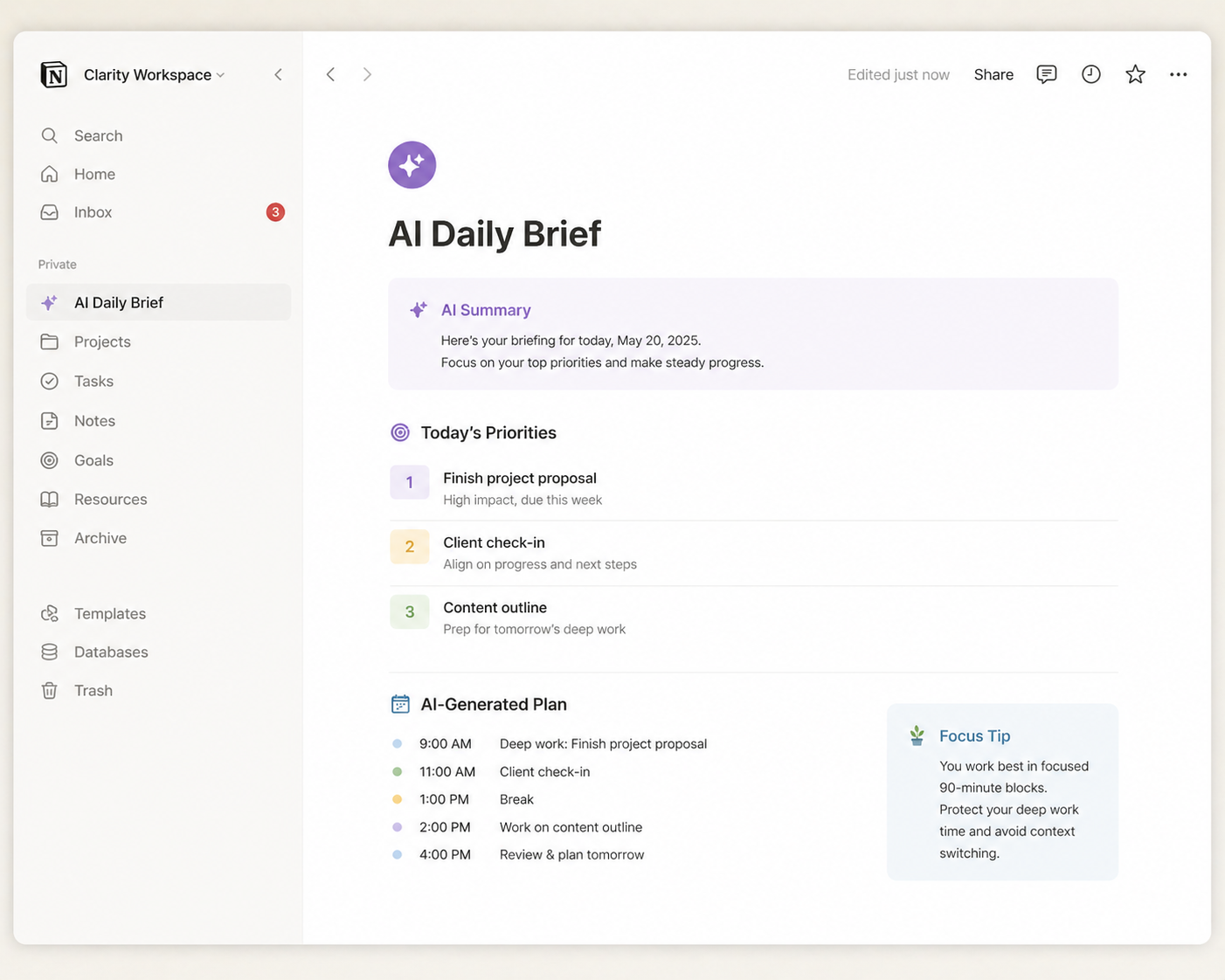
Notion is a workspace tool — a place to write documents, manage projects, take notes, and organise information. Notion AI is the artificial intelligence layer built directly into that workspace. Rather than being a separate chat interface you switch to when you need AI help, Notion AI is embedded in the writing and editing experience itself. You highlight text and ask AI to improve it. Then, you open a new page and ask AI to draft it. Finally, you paste in rough notes and ask AI to structure them.
This embedded approach is what makes Notion AI particularly practical for everyday use. The AI is available exactly where you’re working, without any context-switching. As our guide on AI tools for people who hate writing notes, reducing friction between needing AI help and accessing it is one of the most important factors in whether people actually use these tools consistently.
Setting Up Notion for the First Time
If you’ve never used Notion before, getting started takes about five minutes. Go to notion.com and create a free account using your email address or Google account. You’ll be prompted to set up a workspace — give it a name, choose whether it’s for personal or work use, and you’re in.
The free plan includes Notion AI as a paid add-on at approximately $10 per month. The Notion Plus plan, which includes AI, costs $16 per month. For most beginners, starting with the free plan and adding AI separately is the most sensible approach — it lets you evaluate whether you find Notion useful before committing to a higher tier.
Once you’re in your workspace, you’ll see a simple interface: a sidebar on the left with your pages listed, and a main editing area on the right. A new page is literally a blank document. Click the plus icon in the sidebar, give the page a name, and you’re ready to start. There is nothing else to configure before using AI.
The Core Ways to Use Notion AI
Drafting From Scratch
The most straightforward way to use Notion AI is to ask it to draft something for you. On any Notion page, type a forward slash (/) to open the command menu, then select “AI” and choose “Draft with AI.” A prompt box appears where you describe what you want written.
For example: “Draft a simple project plan for launching a new product, including sections for timeline, team responsibilities, and key milestones.” Notion AI generates a structured document based on your description, which you then edit and personalise.
This approach works well for meeting agendas, project briefs, personal goal documents, weekly plans, and any other structured document that follows a recognisable format.
Improving Text You’ve Already Written
Highlight any text in a Notion page and a small AI toolbar appears. From this toolbar, you can ask AI to improve the writing, make it shorter, make it longer, fix spelling and grammar, change the tone, or translate it into another language.
This is particularly useful for people who can get words on a page but feel uncertain about the result. Write your rough version, select all the text, and ask AI to “improve the writing” or “make this more professional.” The edited version appears below the original, and you choose whether to replace or discard it.
Summarising Long Documents
Paste any long text into a Notion page — a report, an article, a set of meeting notes — highlight it all, and ask AI to summarise it. The summary appears as a new block below the original, keeping both versions visible for comparison.
This is one of the most practically useful Notion AI features for knowledge workers who process large amounts of information. A research report that takes forty minutes to read can be distilled into its key points in under a minute, as explored in more depth in our guide to using AI for document summarisation.
Turning Rough Notes Into Structured Documents
Perhaps the most impressive Notion AI capability for everyday users is its ability to turn unstructured rough notes into clean, organised documents. Dump your unstructured thoughts onto a page — in whatever order they come, without worrying about structure or completeness — then highlight everything and ask AI to “make this into a structured document” or “organise these notes into a clear summary.”
The AI identifies the key themes, groups related points, and produces a structured document with appropriate headings. This capability is particularly valuable after meetings, brainstorming sessions, or research phases where the goal is capturing information quickly rather than organising it carefully.
Practical Use Cases for Beginners
Personal Note-Taking
Even without using any of Notion’s project management features, using it purely as an AI-assisted note-taking app delivers significant value. Take rough notes during a meeting, a lecture, or a phone call, then ask AI to clean them up and extract the key points. Your notes become searchable, structured, and genuinely useful reference material rather than a barely legible record of what you half-remembered to write down.
Weekly Planning
Create a recurring weekly planning page in Notion. Each Monday, type a rough brain dump of everything you need to accomplish that week, then ask AI to organise it into a prioritised plan with daily allocation. This builds naturally on the planning approach described in our guide to using AI to organise your week.
Writing and Editing
For anyone who writes regularly — emails, reports, blog posts, proposals — Notion AI provides a drafting and editing environment where AI assistance is always one click away. Write your rough draft, ask AI to improve it, then copy the result wherever it needs to go. The workflow is faster than switching between a separate AI tool and your writing environment.
Knowledge Base Building
Create a personal knowledge base in Notion by pasting in articles, notes, and reference material you want to retain. Use AI to summarise each piece and extract the key takeaways. Over time, you build a searchable, organised repository of information relevant to your work or interests — a resource that would take many hours to create and maintain manually.
The Limits of Notion AI
Notion AI is useful within Notion, but it is not the most capable AI writing tool available. For complex, nuanced writing tasks that require precise instruction-following, Claude consistently outperforms Notion AI. In the case of research requiring current information, Perplexity is more reliable. For voice and versatility, ChatGPT offers a broader feature set.
The right framing for Notion AI is that it is exceptionally convenient — it brings capable AI assistance directly into the workspace where you’re already working, without any friction. For most everyday writing, summarisation, and organisation tasks, that convenience is more valuable than the marginal capability difference between Notion AI and dedicated tools.
Getting Started Today
The fastest way to get value from Notion AI is to pick one specific task you already do regularly — taking meeting notes, writing weekly plans, drafting documents — and do it in Notion with AI assistance for two weeks. The learning curve for the basics is genuinely shallow, and the productivity improvement from having AI assistance embedded in your writing environment is immediately apparent.
Create your free account at notion.com, add the AI add-on, open a blank page, and start with a task you already understand. Within one session, you’ll have a clear sense of whether Notion AI fits your workflow.