

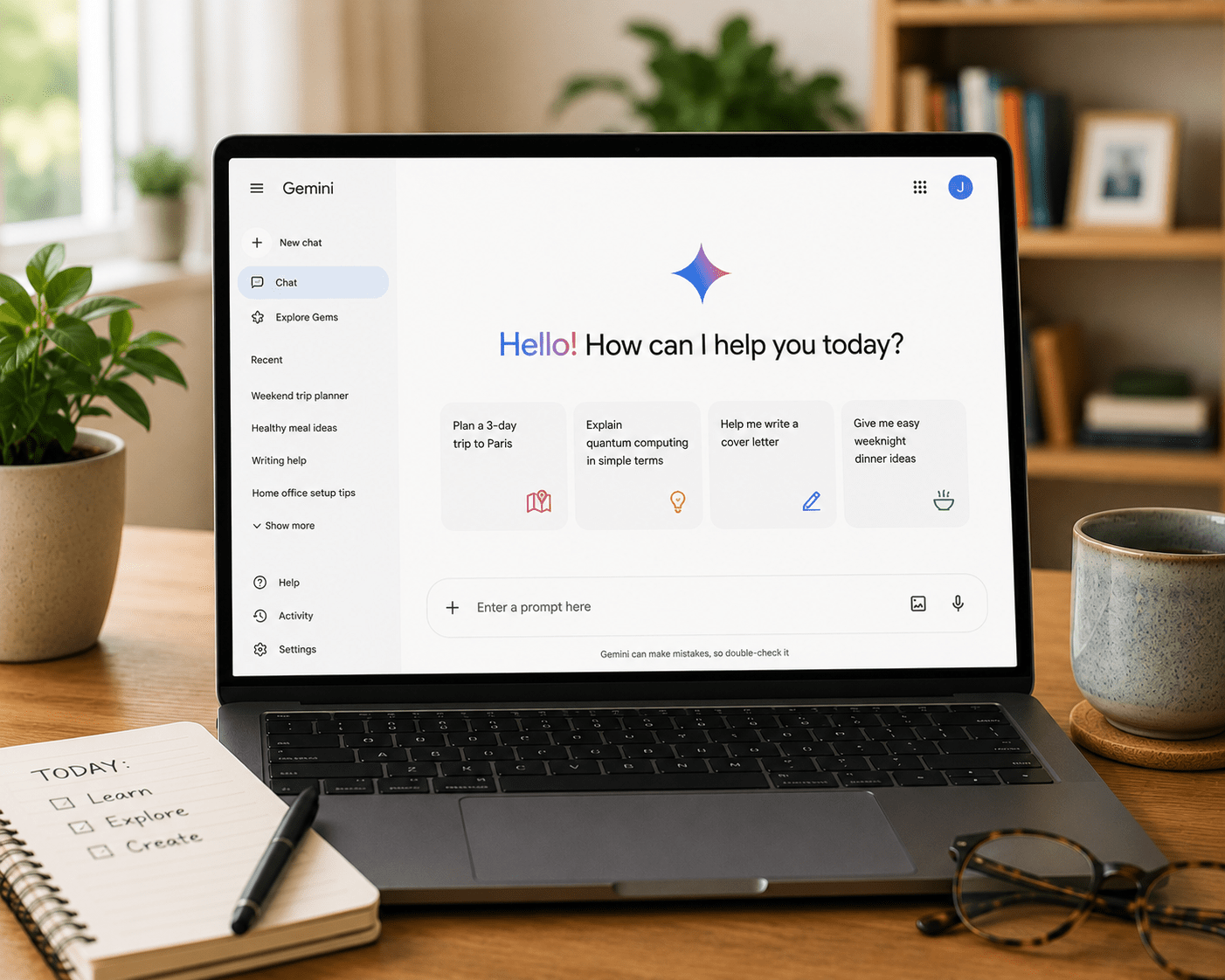
If you use Gmail, Google Docs, Google Drive, or Google Calendar in your daily life, Google Gemini may be the AI tool that delivers the most practical value with the least friction. This is because it is already integrated into the tools you use every day, rather than being a separate app you switch to when you need AI assistance. This beginner’s guide to Google Gemini covers what it is, how it differs from other AI tools, where it genuinely excels, and where it falls short. It also covers exactly how you can start using it effectively, whether you are completely new to AI or already use other tools and want to understand what Gemini adds. No prior AI experience required.
What Google Gemini Actually Is
Google Gemini is Google’s AI assistant — a large language model that you interact with through conversation, in the same way you would interact with ChatGPT or Claude. You type a question or request, it responds, you follow up, and it continues the conversation. The interface is a clean chat window available at gemini.google.com or, increasingly, embedded directly inside Gmail, Google Docs, and other Google Workspace applications.
What makes Gemini for beginners specifically interesting is its relationship with Google’s ecosystem. Unlike ChatGPT and Claude, which are standalone chat tools that you use separately from your other applications, Gemini is increasingly embedded into the software many people use for work and daily life. This means it can access and interact with your actual documents, emails, and calendar rather than working in isolation.
Furthermore, Gemini has real-time web search built in as a standard feature on both free and paid tiers. When you ask Gemini a question about current events, recent news, or any topic where up-to-date information matters, it searches Google in real time and synthesises the results. This is a significant practical advantage over AI tools that work only from training data with a fixed cutoff date.
Google Gemini for Beginners: How It Compares to ChatGPT and Claude
Understanding where Gemini fits relative to other AI tools helps beginners make informed decisions about which tool to use for which task. Our full comparison of the major AI platforms covers this in depth, but the key practical differences are worth summarising here.
Gemini’s strongest advantages over alternatives are its real-time web access and its Google ecosystem integration. It also has multimodal capabilities — meaning it handles text, images, audio, and video in a way that is technically sophisticated. For Google Workspace users specifically, the ability to ask Gemini to summarise an email thread from your actual Gmail inbox, help draft a document in Google Docs while seeing the document’s existing content, or pull information from a spreadsheet in Google Drive represents a genuine workflow integration that neither ChatGPT nor Claude currently match in the Google environment.
Where Gemini is relatively weaker is in writing quality and nuanced instruction-following. For tasks requiring consistent tone, precise format adherence, and polished prose — formal reports, carefully crafted correspondence, documents requiring multiple specific constraints simultaneously — Claude consistently outperforms Gemini. For general versatility and the widest feature set in a single tool, ChatGPT is stronger. Gemini’s advantage is specifically in currency of information, Google integration, and multimodal understanding.
Setting Up Google Gemini: What You Need to Know
Getting started with Google Gemini is simpler than any other major AI tool if you already have a Google account — which you do if you use Gmail, YouTube, or any other Google service.
Go to gemini.google.com and sign in with your existing Google account. You will see a clean chat interface immediately, with no additional setup required. Unlike ChatGPT and Claude, there are no account creation steps, no email verification, and no separate password to create if you are already signed into your Google account in the browser.
The free tier of Gemini gives you access to Gemini 3 Flash, which is Google’s capable, fast-response model for everyday tasks. The paid tier — Google AI Pro at $19.99 per month — gives you access to Gemini 3 Pro, which is significantly more capable for complex tasks, along with Deep Research features, 2TB of cloud storage, and full Gemini integration across Gmail, Docs, and other Google Workspace applications.
For most beginners, the free tier is the right starting point. It is genuinely capable for everyday questions, research, summarisation, and writing assistance. Moving to the paid tier makes sense when you regularly need the Google Workspace integration features — which is where Gemini’s unique value becomes most apparent.
How to Use Google Gemini for Beginners: The Most Valuable Use Cases
Real-time research and current information.
This is Gemini’s strongest use case for beginners and the area where it most clearly outperforms tools without live web access. Ask Gemini about current events, recent developments in any field, current prices, recent news, or anything where the answer might have changed in the past few months.
“What are the current rules for taking liquids through airport security in the UK? Have there been any recent changes?”
“What are the latest recommendations on statins for people over 65 with borderline cholesterol levels?”
“What is the current state of the housing market in [your area] and what are the predictions for the next six months?”
Each of these questions requires current information that a static-knowledge AI tool cannot reliably answer. Gemini searches Google in real time, synthesises the results, and presents a clear, current answer with source references you can follow up on.
Summarising and working with your Google documents.
For Google AI Pro subscribers, this is Gemini’s most practically distinctive capability. Within Google Docs, you can ask Gemini to summarise the document you are working in, suggest improvements, continue writing from where you left off, or rewrite a specific section in a different tone — without copying and pasting anything out of the document.
In Gmail, you can ask Gemini to summarise a long email thread you’ve been copied into, draft a reply that addresses the key points, or find an email from a specific person about a specific topic. In Google Sheets, you can ask Gemini to explain what the data shows, suggest a formula for a specific calculation, or summarise the key insights.
Multimodal tasks — working with images and more.
Gemini handles image understanding more sophisticatedly than most users realise. You can upload a photograph and ask for a detailed description, ask it to read text from an image, identify objects or landmarks, or analyse a chart or diagram. This is useful for accessibility purposes, for extracting text from photographs of documents, and for analysing visual information without manual transcription.
Everyday conversational assistance.
Beyond its specific advantages, Gemini handles the full range of everyday AI tasks competently — answering questions, drafting emails, explaining concepts, brainstorming ideas, and helping with planning. For Google Gemini beginners who want a single tool for all purposes, it is a capable general assistant that requires no switching between apps if you already live in Google’s ecosystem.
Common Mistakes Google Gemini Beginners Make
Using Gemini for writing tasks where Claude would serve better. Gemini produces competent writing but lacks the precise instruction-following and tonal consistency that Claude delivers for complex writing tasks. If the output needs to be polished and precisely formatted, Claude is the stronger choice. Use Gemini for research, summarisation, and Google-integrated tasks; use Claude for writing-intensive work.
Not taking advantage of the source references. Unlike tools that generate responses from training data without showing sources, Gemini typically provides references when it searches the web. Following up on those sources — clicking through to verify the information and get more detail — is a habit worth building, particularly for any factual information you intend to use professionally.
Assuming Gemini has accessed all your Google data by default. Gemini does not automatically read all your Gmail and Google Drive unless you explicitly connect your Google account and the relevant features are enabled. In the free tier, Gemini operates as a standalone chat tool. The deeper Google integration — where it actually reads your emails and documents — is a feature of the paid tier and requires explicit connection of your accounts.
Not specifying that you want current information. Even with web search available, Gemini sometimes responds from its training data rather than searching the web, particularly for questions that could be answered from either source. If you specifically need current information, include that in your prompt: “Please search for the most current information on this topic” or “I need the latest figures on this — please check current sources.”
Google Gemini for Beginners: A First Session Walkthrough
The following sequence produces a useful first Gemini session that demonstrates its specific strengths rather than its general capabilities.
Sign in at gemini.google.com with your Google account. In the chat box, type: “I want to understand how Google Gemini is different from other AI tools I might have heard of. Can you explain your specific strengths in plain English, and then give me three examples of things you can do that ChatGPT cannot?”
Read the response. Notice how Gemini’s answer draws on current information about its own capabilities. Then follow up with a real research question — something you have actually been wondering about recently, where the answer depends on current information. A question about a recent news story, a current price, a recent change in regulations, or a recent development in a field you care about.
Observe how Gemini searches and synthesises current information. Then, if you have a Google Docs document you are currently working on, open it, look for the Gemini icon in the toolbar, and ask it to summarise the document or suggest improvements. That demonstration of in-document AI assistance — requiring no copying and pasting, no switching to another app — is what makes Gemini distinctive for Google Workspace users specifically.
For a broader picture of how Gemini compares with Claude and ChatGPT across different use cases, our platform comparison guide provides a thorough side-by-side assessment. For an introduction to the principles of writing good AI prompts that apply equally to Gemini, ChatGPT, and Claude, our prompting guide covers the essentials.




Nice write up . I learnt a number of things.